
This is the archived documentation of the CAM-AI open-source software for self-hosted installations. It is provided as is and no longer actively maintained. Using CAM-AI in production? Talk to us at cam-ai.de.
docs / cameras / imou
IMOU Cruiser SE+: Configuration
To connect your camera to your network, follow the quick installation guide provided with the camera, as also outlined here. All you need to do is install the “Imou Life” App, click the ‘+’ button to add a new device, select your device from the list, and then follow the on-screen instructions.
The default username for this camera is “admin.” You can find the password for your camera stream on the back of the device under “SAFETY CODE.”
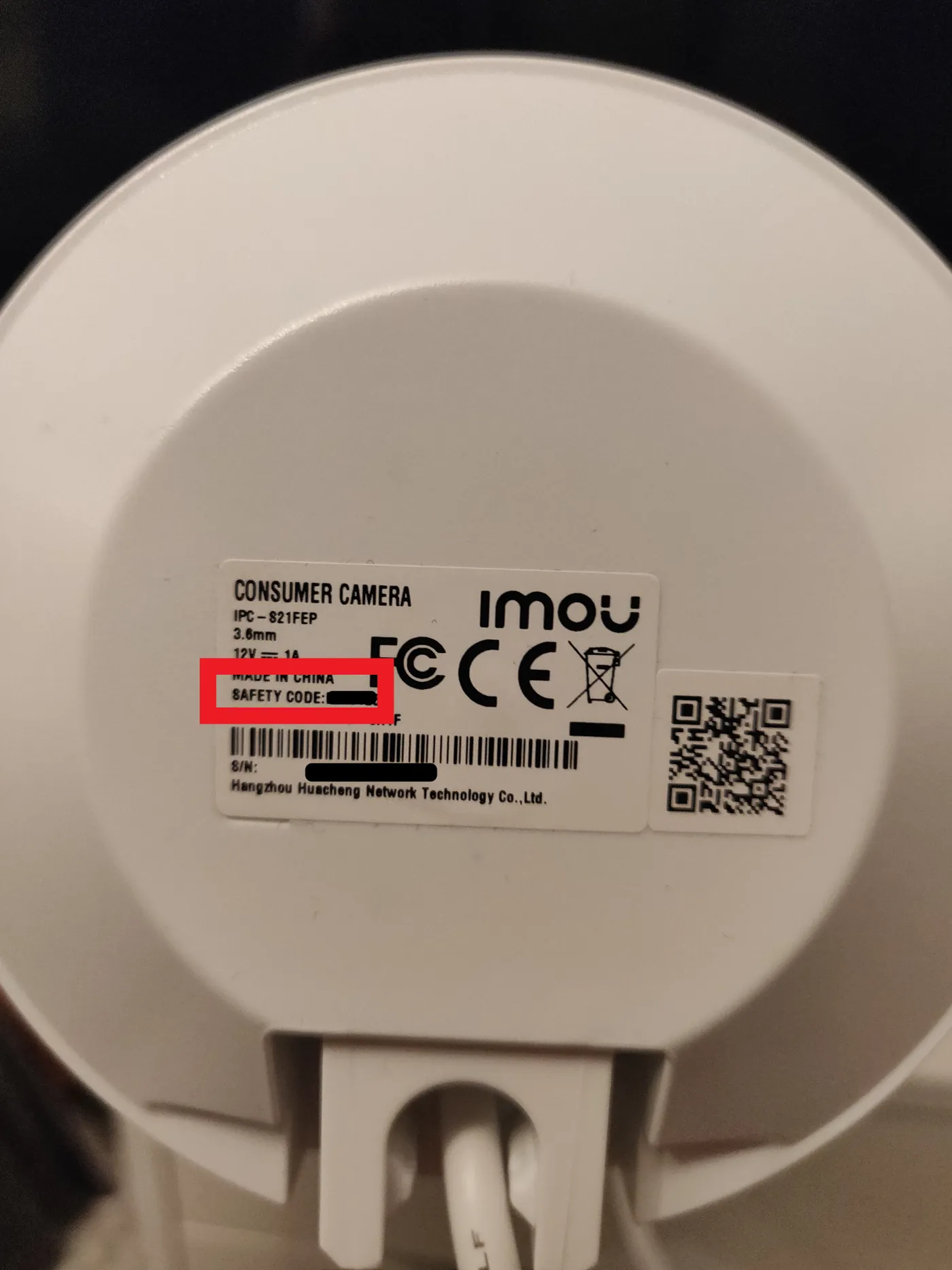
Configuration with username=admin & password=SAFETY CODE
Port forwarding exposes your camera directly to the internet. Only forward ports if you need remote access, use a strong, unique camera password, and keep the camera firmware up to date.
Make sure that you have a shared port 554 for this IP on your router, as explained here.
Now you are ready to connect your camera following our instructions for our webserver app or your own server. Your camera type will be available in the list for installation.
Our software will automatically generate the URL for your RTSP stream:
rtsp://{username}:{password}@{domain or IP}:{port}/cam/realmonitor?channel=1&subtype=0